Student Instructions
| Site: | CyberCaesar: Learning Latin |
| Course: | CyberCaesar: Learning Latin |
| Book: | Student Instructions |
| Printed by: | |
| Date: | Friday, 12 June 2026, 3:46 AM |
Description
Instructions on how to use the site
Table of contents
- 1. Logging in
- 2. Accessing each course
- 3. Navigating the course
- 4. Returning to the main page of a course
- 5. Reading a narrative
- 6. Finding the meaning of a word
- 7. Checking an ending
- 8. Getting help
- 9. Taking a lesson
- 10. Completing exercises
- 11. Reviewing flashcards
- 12. Researching Roman Life
- 13. Viewing grades
- 14. Completing Activities
- 15. Receiving badges
1. Logging in
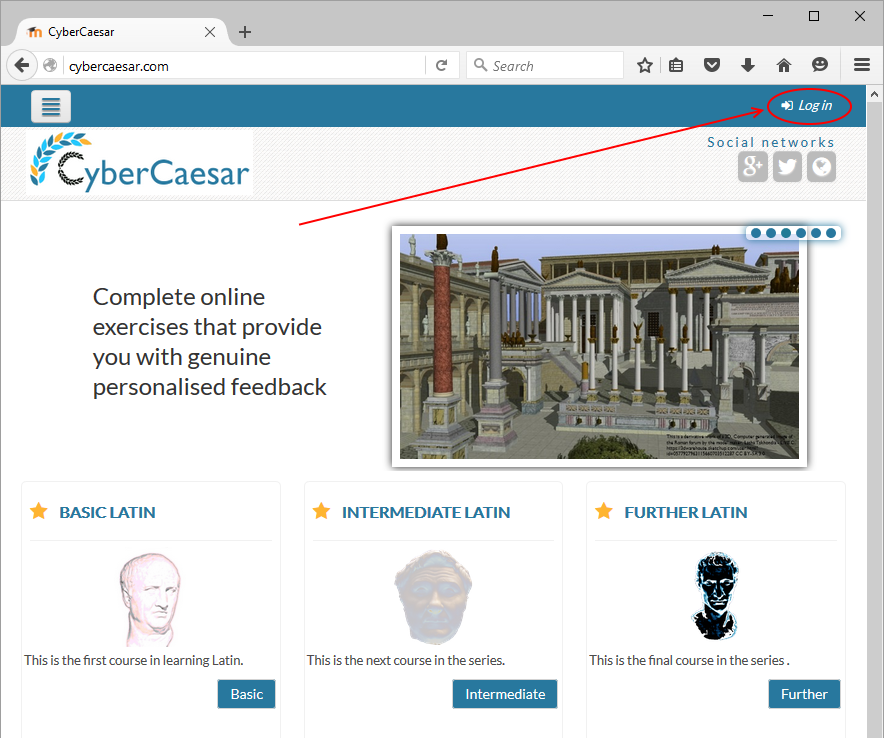
- Select [Log in] on the top right-hand corner of the screen,
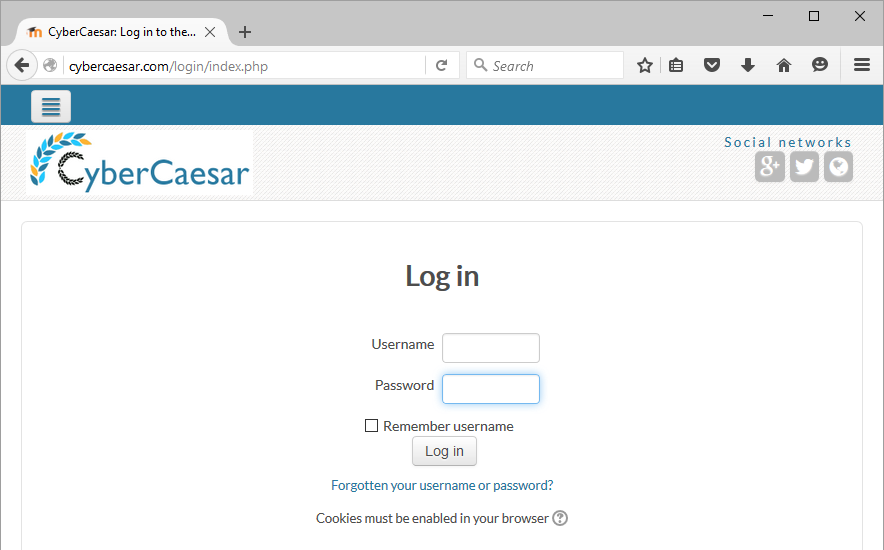
- Fill in the username and password fields with the information that you have been provided.
2. Accessing each course
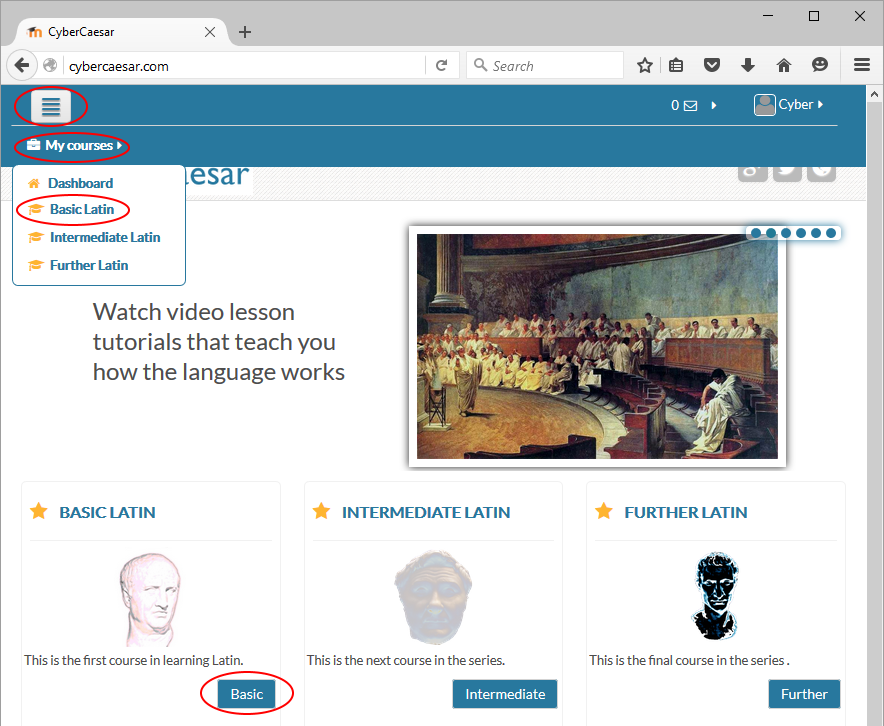
- Click (or tap) on the four line icon in the top left-hand corner
- Click (or tap) on My Courses
- Click (or tap) on your course
OR
- Click (or tap) on the button below the course image
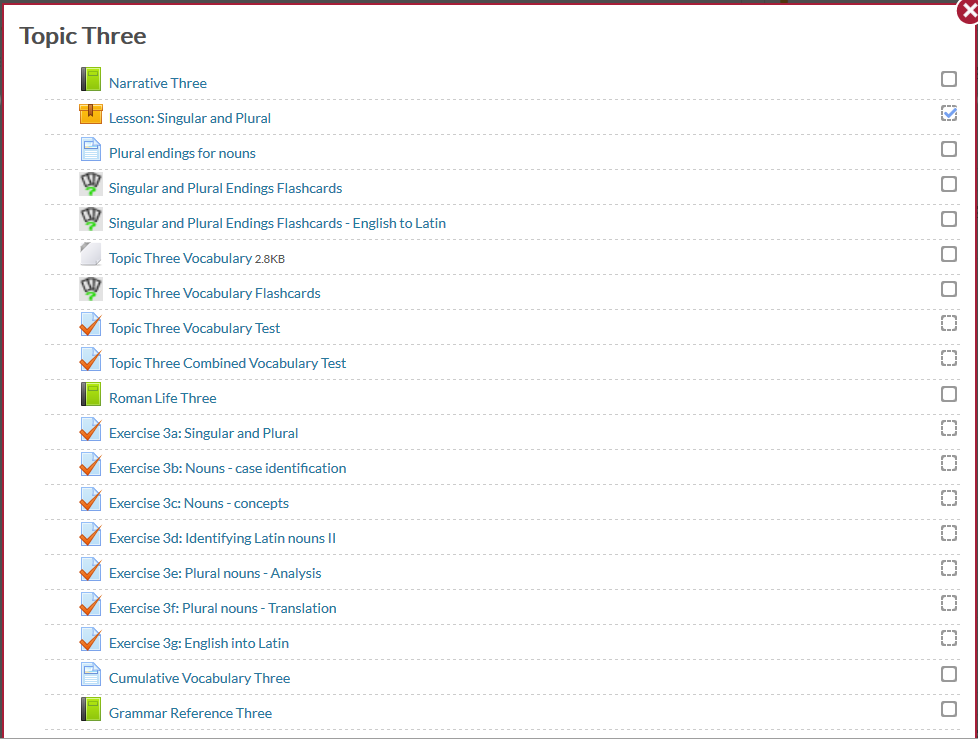
3. Navigating the course
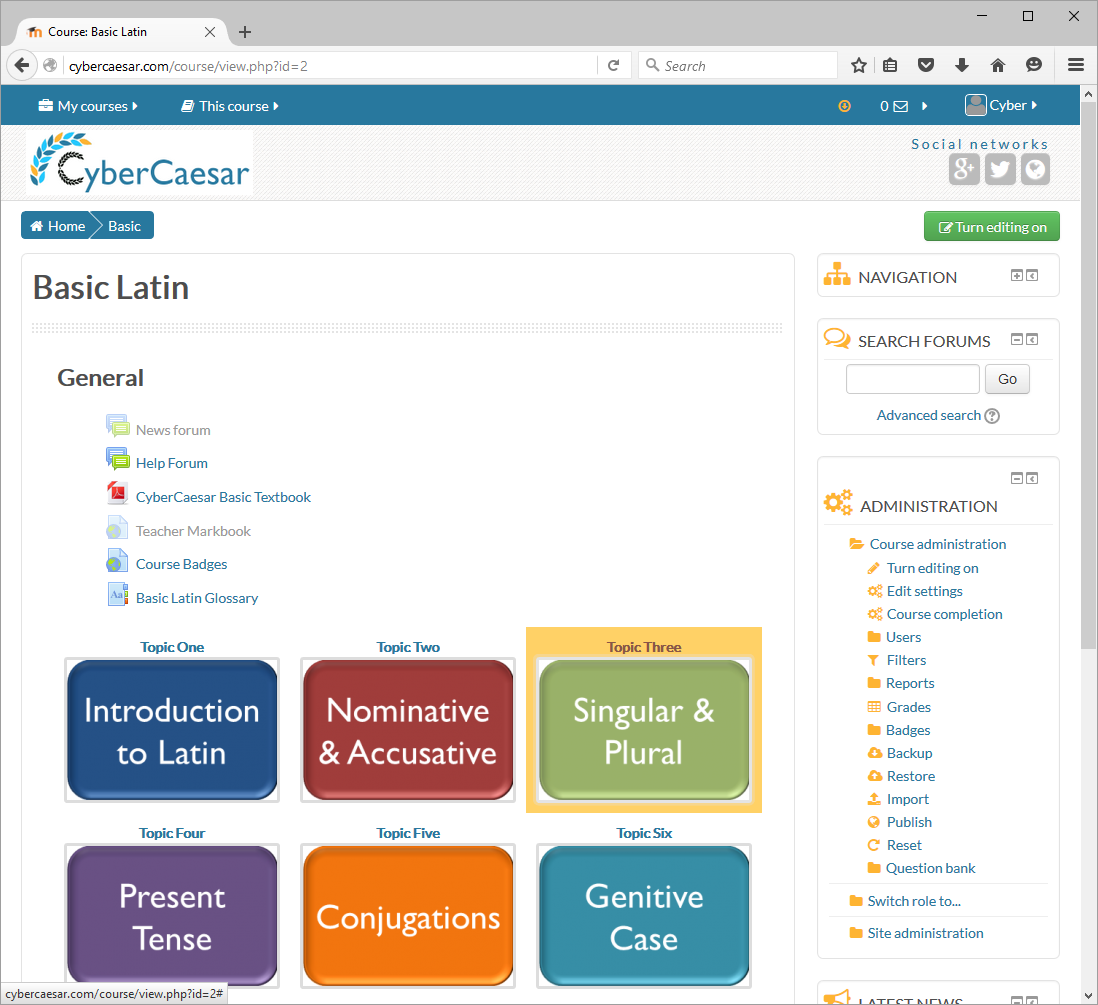
- Click on the topic
- To see the content
4. Returning to the main page of a course
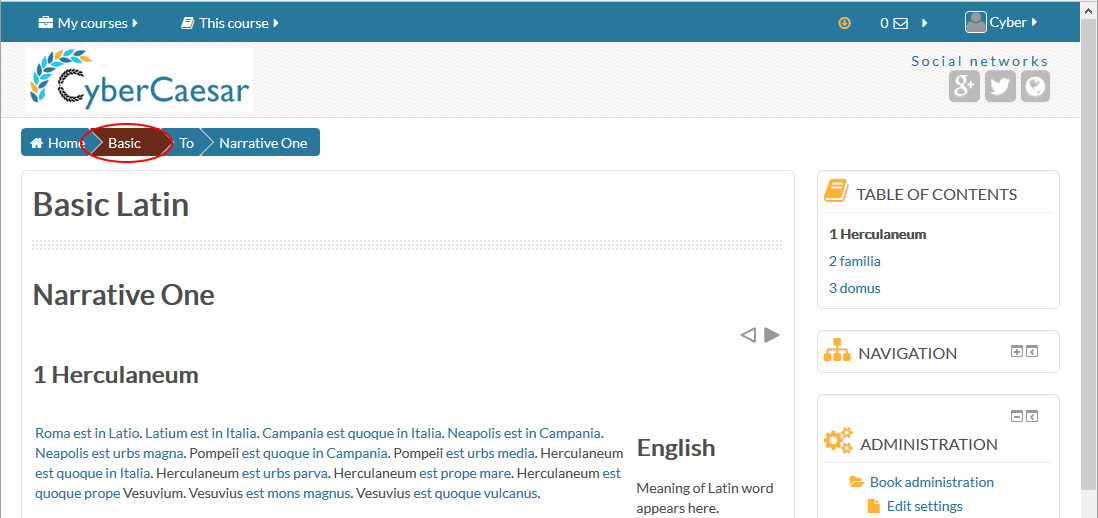
- Click (or tap) on the course name - next to [Home]
5. Reading a narrative
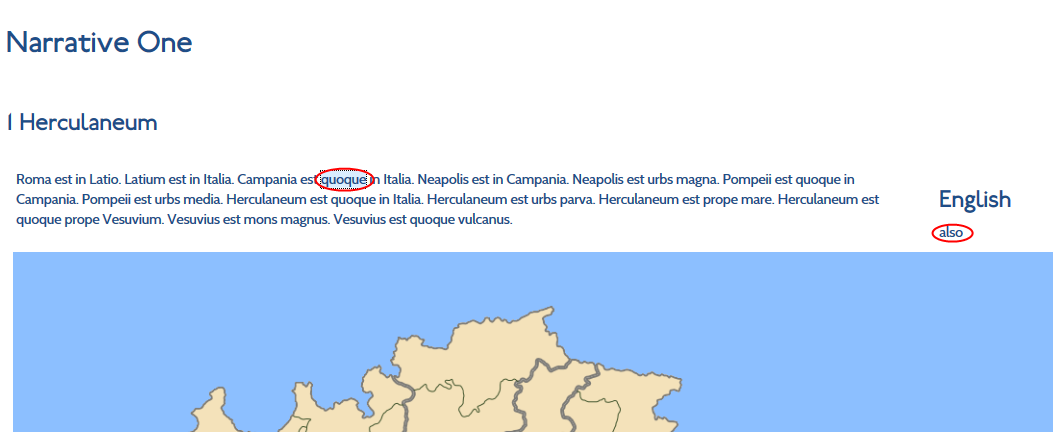
- Click on a word in a narrative and its meaning appears on the right.
6. Finding the meaning of a word
Not every Latin word in a narrative is linked to its meaning. Words that appear in the vocabulary lists are not linked. If you can't remember the meaning of a Latin word, you can find it in the cumulative vocabulary lists.
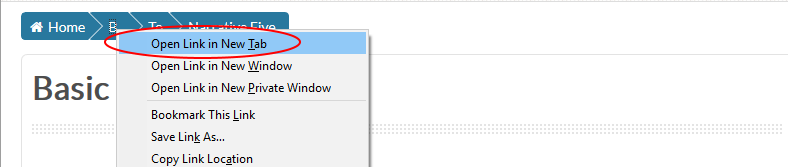
1. Right click (or press and hold) the course name
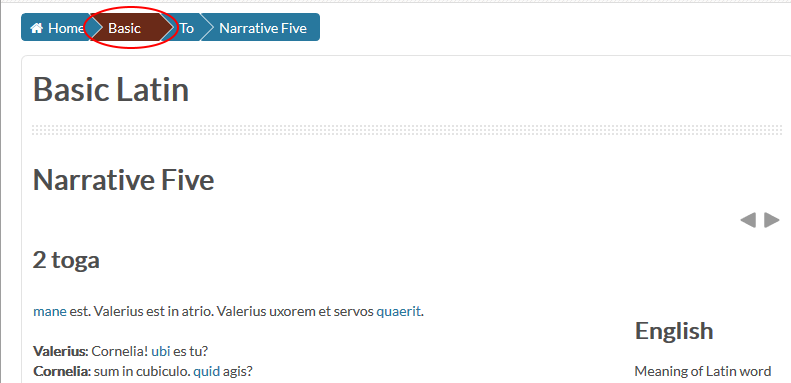
2. Click on [Open link in new tab]
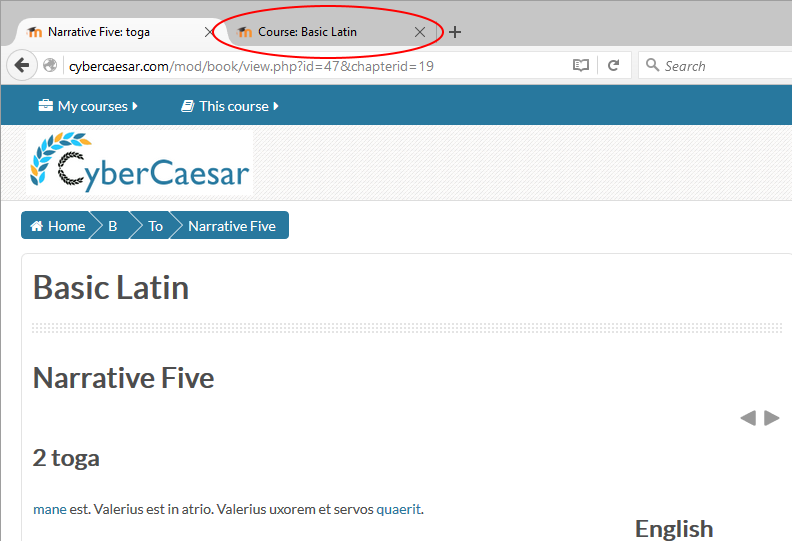
3. Go to the new tab
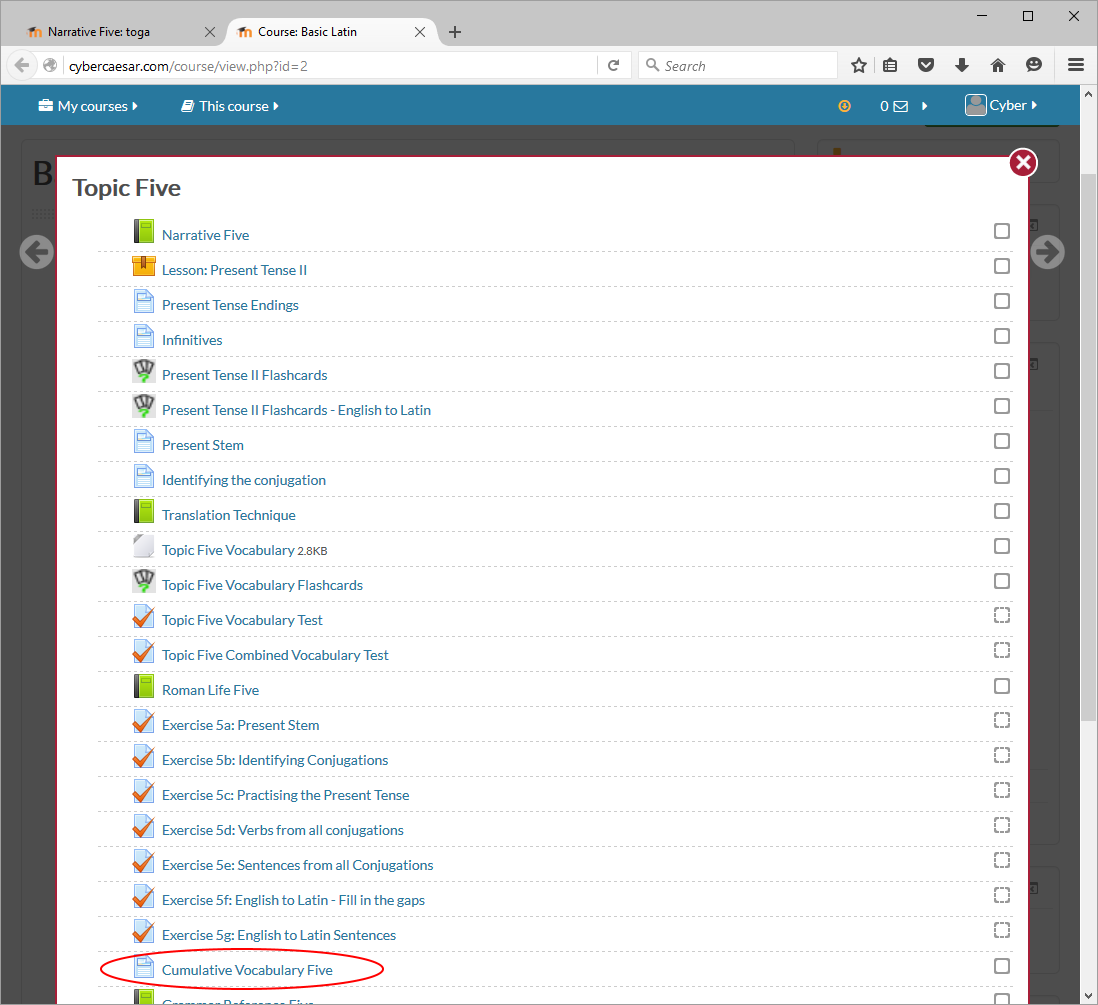
4. Find and open the cumulative vocabulary list for the topic.
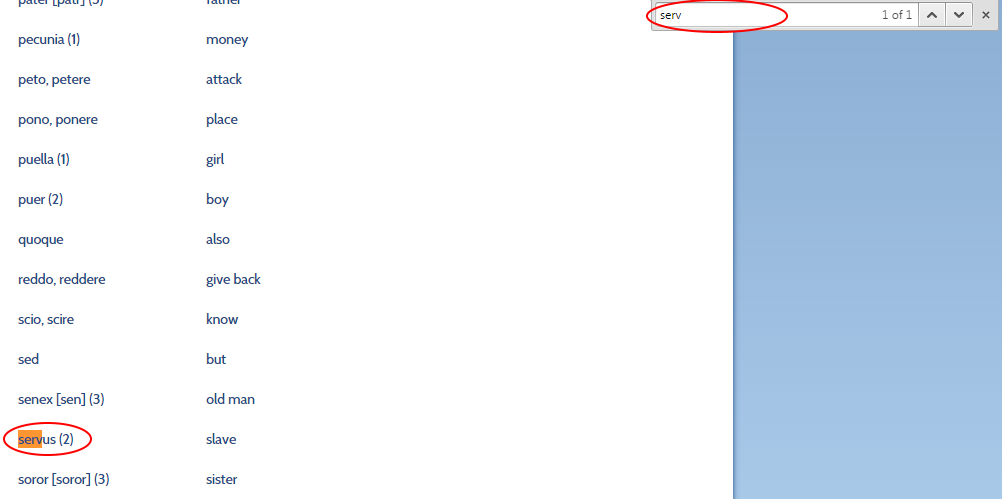
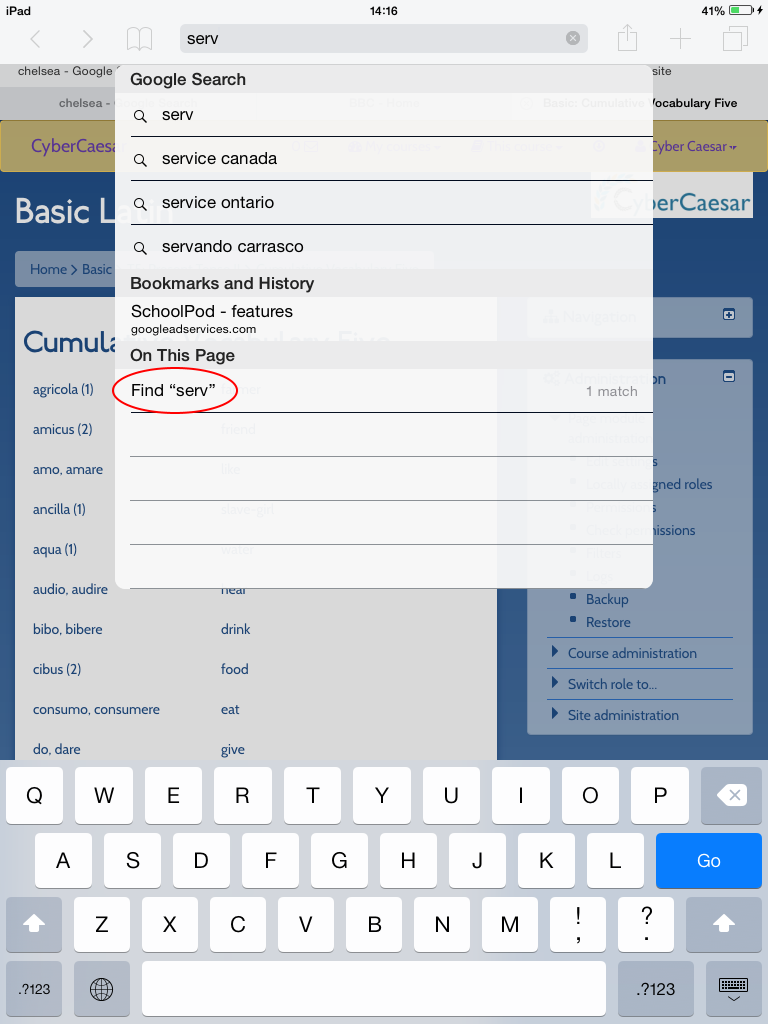
5. On a pc, press Ctrl and f on your keyboard. Enter the word you are searching for and it should be highlighted in the list.
5b. Using Safari on an iPad, type the word into the search bar and then scroll down to [Search in this page]
7. Checking an ending
There may be times when you have forgotten what a particular ending means. If this happens, you can look it up in the grammar reference of each topic. To get to there, follow the first three stages from "Finding the meaning of a word." Then:
4. Scroll down and click or tap on [Grammar Reference] for the topic
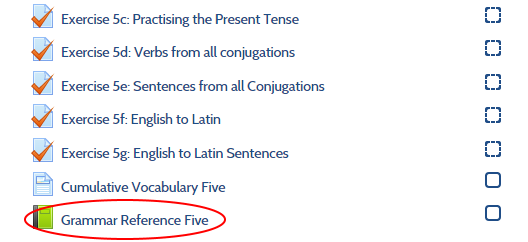
5. Find the ending from the table of contents on the right

8. Getting help
To seek help on the course, go to the Help Forum.
1. Search the forum using the panel on the right to see if anyone has posted your question before.
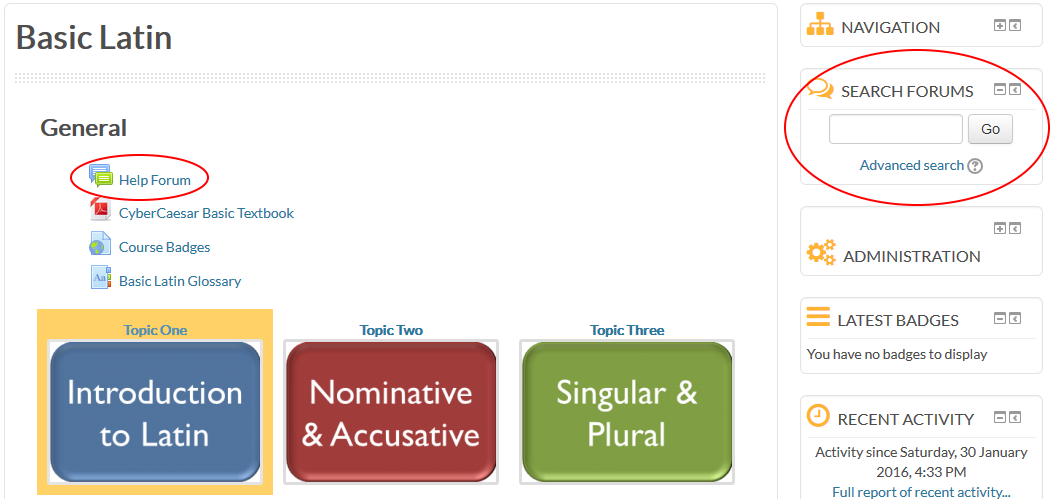
2. If your question hasn't been asked before, click on the Help Forum at the top of the page. This takes you here:

3. Click or tap [Add a new discussion topic]. Remember to follow the
guidelines. Try to be as specific about your problem as possible.
9. Taking a lesson
CyberCaesar has online lessons to teach and instruct you about a new feature of language in each topic.
Click on the lesson and work through it.
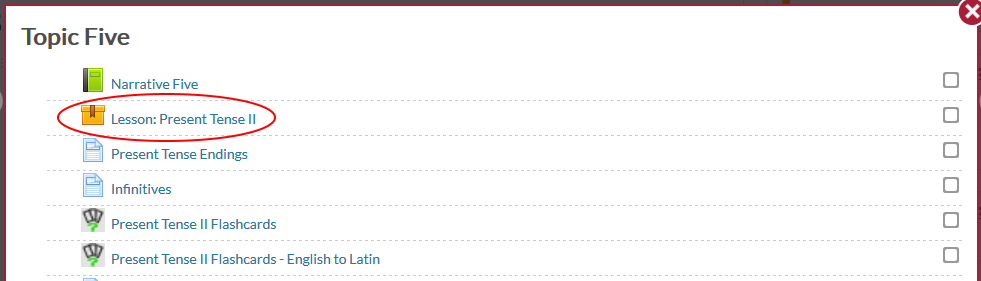
There is no pass mark and you can take a lesson as often as you wish. The information in the lesson can also be found in the grammar reference.
10. Completing exercises
The exercises in CyberCaesar are essential activities within the course. They have been constructed to provide instant and individualised feedback on each question. It is vital to read this feedback carefully.

In the example above, the student has used the correct words but has used the wrong endings on each word. The feedback tells the student that the stem of each word is correct. The feedback also supplies clues to the student on how the work can be improved.
It is vital to READ THE FEEDBACK CAREFULLY.
11. Reviewing flashcards
Flashcards have been added to the course to help the students learn items more effectively. We recommend that students use these flashcards every day for five minutes. We also recommend that students produce their own flashcards and recommend Anki for that purpose.
1. To use the CyberCaesar flashcards, click or tap on the flashcard activity.
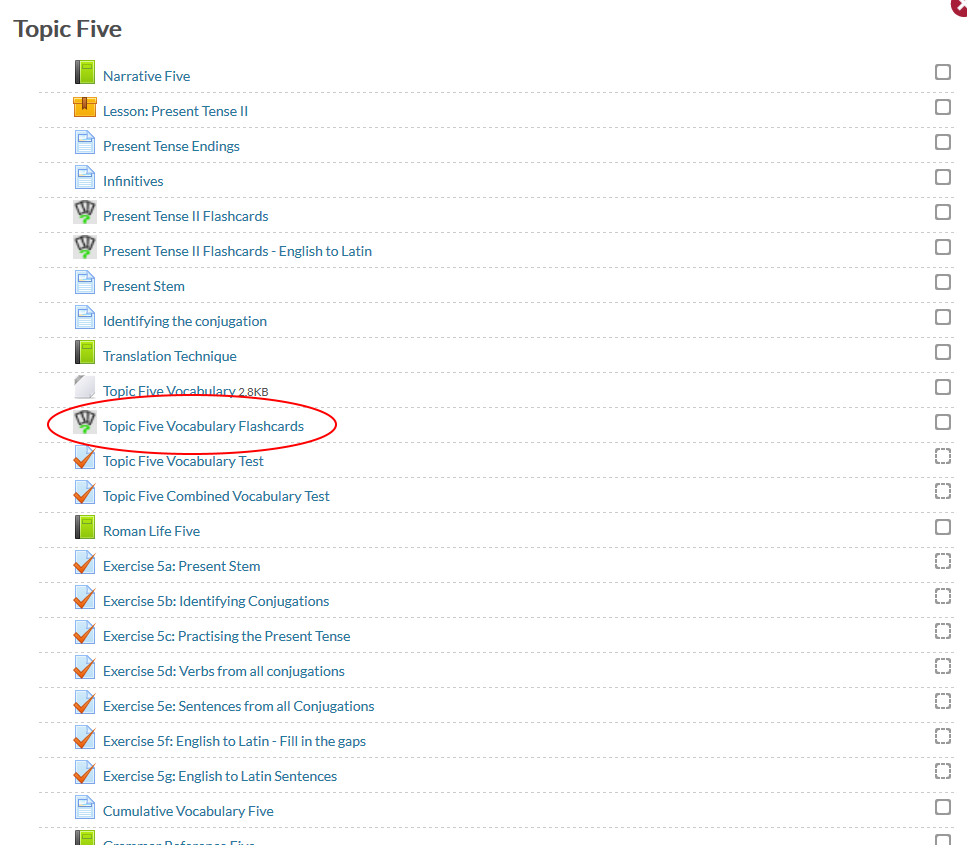
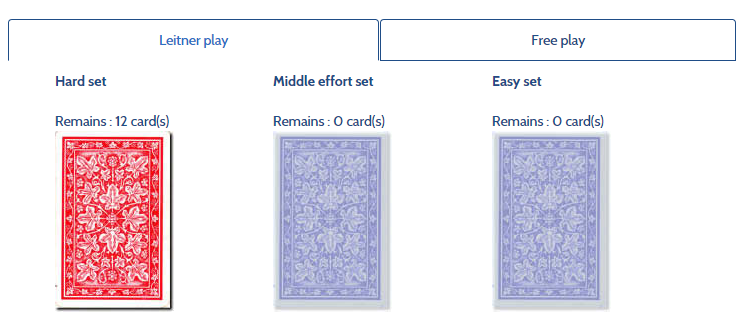
2. Click on the flashcards to start learning. Start with the hard set. Everything you don't know on your first visit stays in the hard set. Everything you do know goes to the middle set.
3. Practice the material. If you know the information, click [I got it]. If you don't, click [I missed!]
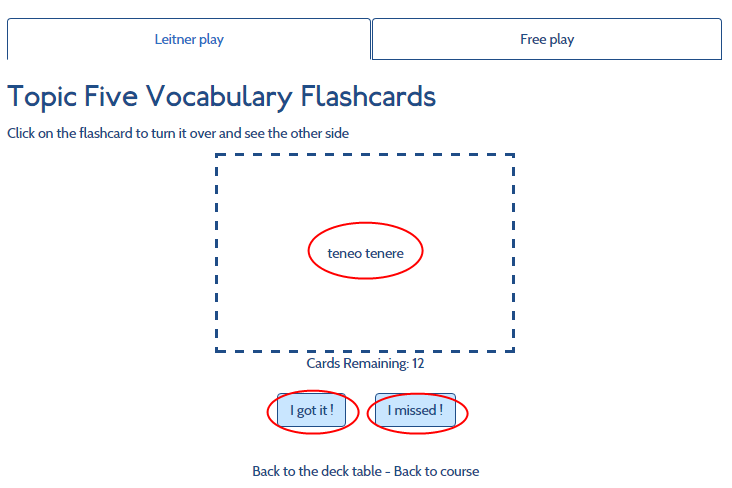
Using flashcards
4. The key to flashcards is to use them regularly. They are an extremely effective way of learning information.
12. Researching Roman Life
CyberCaesar has sections on Roman life to explain features of Roman society.
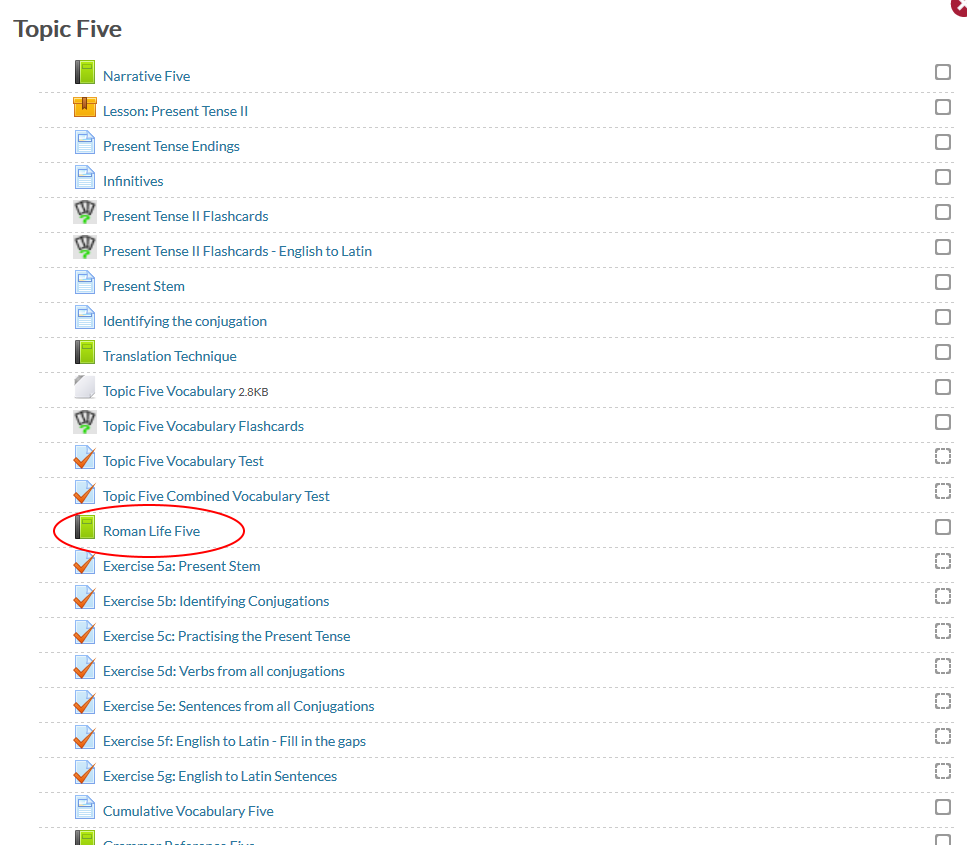
These activities are designed to be an introduction to prepare the student to research the subject independently.
13. Viewing grades
To check your marks or grades, click or tap [Grades] in the Administration block.
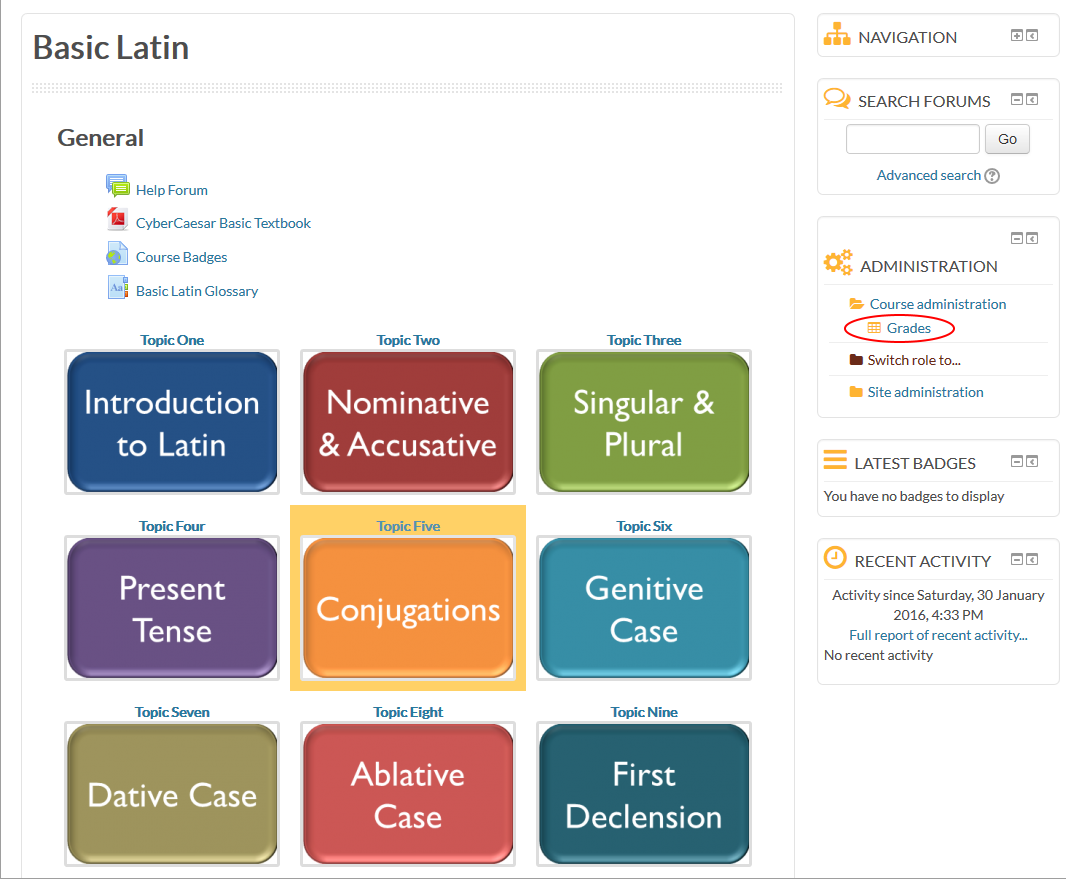
14. Completing Activities
1. As you work through the course, activities can be marked as complete in two ways:
- A box with a solid border can be marked complete by the student. This shows that you have finished with this activity.
- A box with a dotted border is marked as complete automatically by the computer.
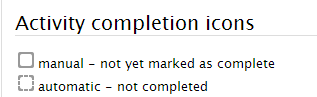
2. If you pass an automatic activity, a tick will be placed in the box. If you don't, a cross will appear in the box. You can always reattempt an activity to get red of the cross.
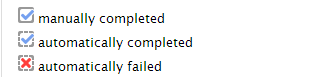
15. Receiving badges
As you progress through the course, students are awarded badges as they complete certain activities.
Badges that students have earned appear in a block on the right.
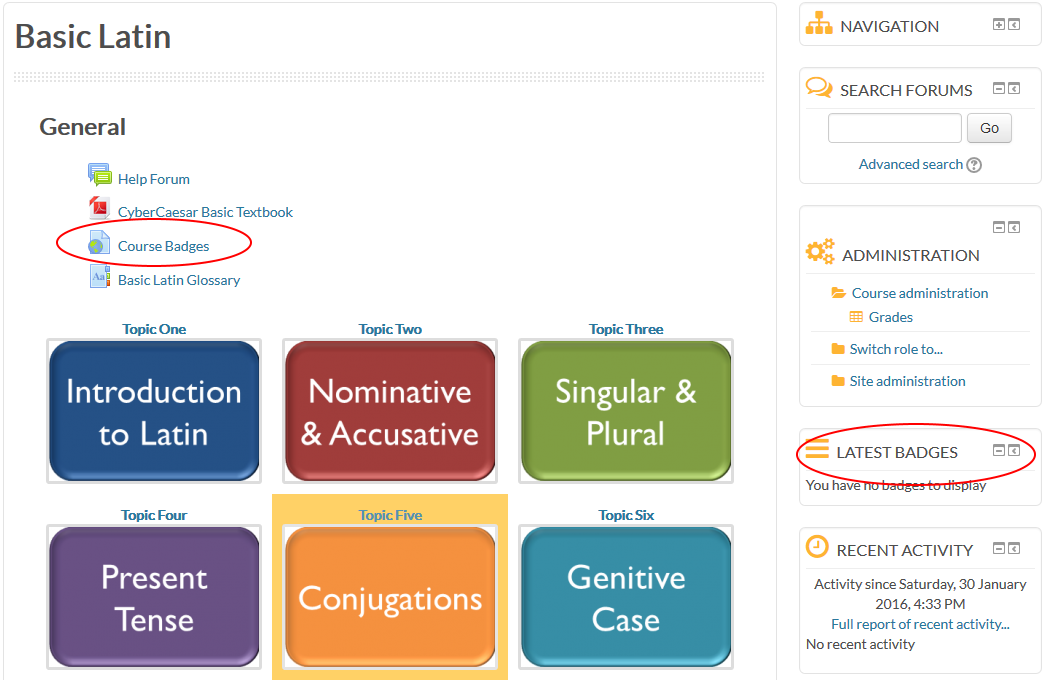
Students can see all the badges available by clicking or tapping the link on the top of the page [Course Badges].

Badges are awarded mainly for passing vocabulary tests and completing English into Latin exercises.